The admin UI
The admin UI is an optional web page to run your server: who can use it, the accounts, the health of each part, the alerts and the storage. This page says what it does, how to turn it on and reach it, and how its pages behave. Install the stack first, see the documentation index.
What it does
- Limits: max users of Sync and, with self-hosted accounts, max accounts, changed without a restart. See Limits.
- Sign-ups and invitations, with self-hosted accounts: anybody, an allowlist or nobody, and invitations by email. See Sign-ups.
- Accounts: search them, disable them, sign out a device or everywhere, help owners who lost a password or an authenticator, read their security history, keep a note. See Accounts.
- Sync data of an account: what the tokenserver and the storage hold for it, what looks wrong, a reset, a deletion. See Sync data.
- Monitoring: the health of each component, versions, the schema levels and setup migrations of the databases, public URLs and certificates, setup checks, a read-only Configuration page, Sync activity and errors, the event log and Prometheus metrics. See Monitoring.
- Alerts by email, or to Slack, Discord, Microsoft Teams, ntfy, Gotify, Telegram, Matrix or any webhook, with no SMTP server. See Alerts.
- Storage: live, expired and orphaned data, a purge, and the daily maintenance. See Storage.
- Backups: the last run on the overview, and an alert when one fails. See Backups.
With Mozilla's accounts there are no sign-ups to control, and the server knows only account ids: the pages show the Sync part only. The notes say whose each account id is.
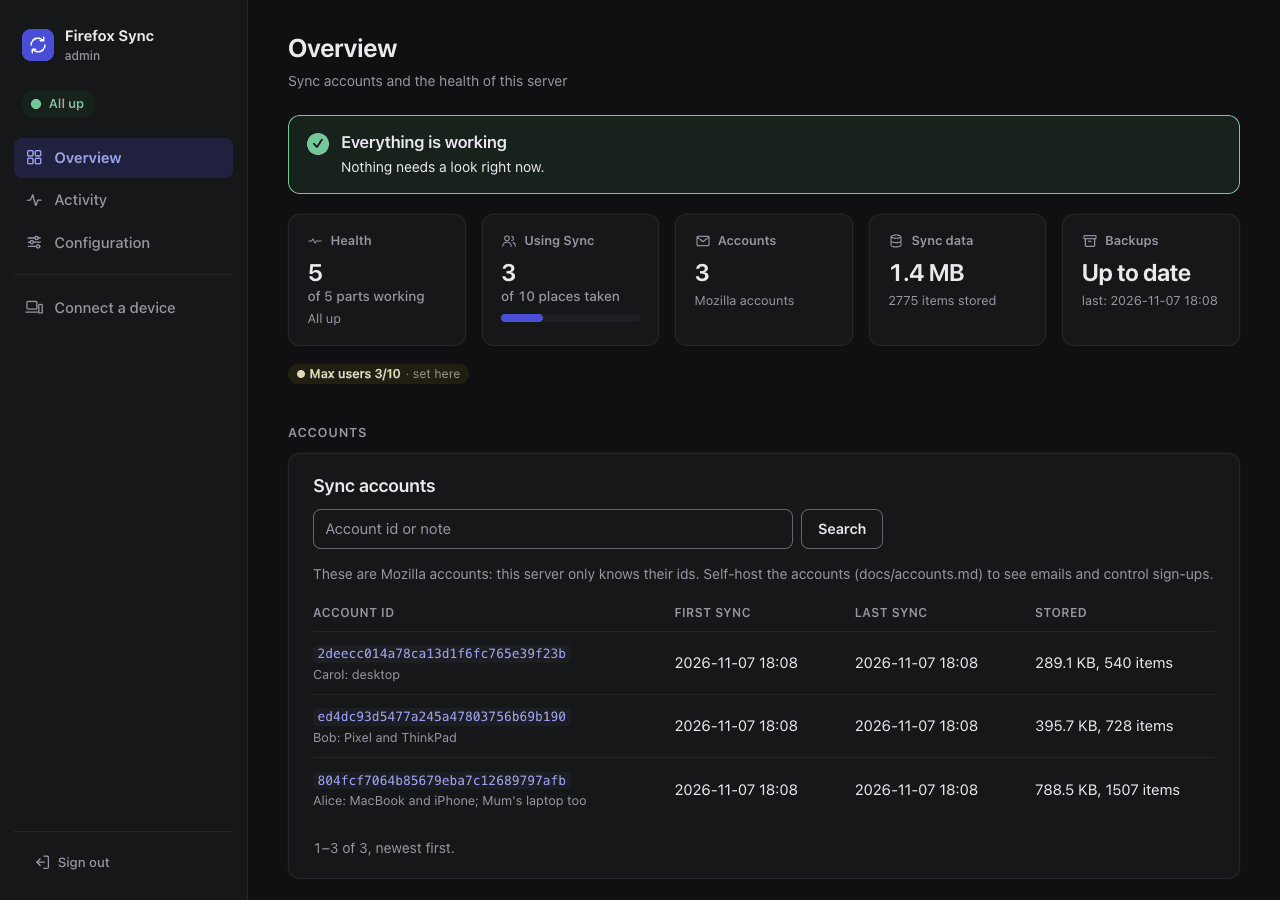
The pages work on a phone: the side menu becomes tabs at the top and each table row a card (screenshot). Light or dark follows the system setting. There is no JavaScript: plain links and forms.
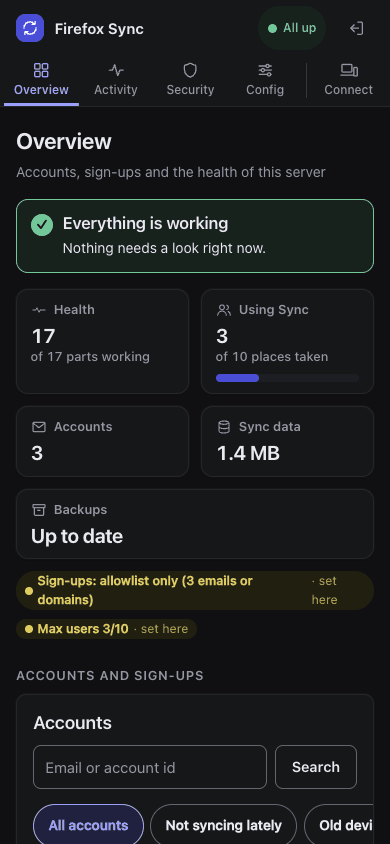
The screenshots come from a small demo server with self-hosted accounts: three people with their devices, one more invited. It is rebuilt with tests/demo_seed.py, see the screenshot demo. The image itself is described in Images. What its tests cover, and how to run them, is in Testing.
Set up
./prepare_environment.sh asks "Run the admin UI?" in its part about it (default yes; on when invite-only Sync is approved there). It then generates ADMIN_PASSWORD, and in .env adds admin to COMPOSE_PROFILES and sets SYNC_MAX_USERS=initial:<the number you gave>. It asks how admins sign in: the password, the self-hosted accounts, another OpenID Connect provider or a header of your reverse proxy, then who is an admin, see Signing in.
To turn it on by hand:
-
Add the admin UI's settings to
.env:COMPOSE_PROFILES=admin # with the pairing server: admin,pairing ADMIN_PASSWORD=<at least 12 characters, random> ADMIN_EXPORT_PORT=127.0.0.1:8090 ADMIN_DB_PASSWORD=<random, letters and digits> -
Start the stack again:
docker compose up -d
| Install | How the admin UI starts |
|---|---|
| docker compose | the admin profile of COMPOSE_PROFILES |
| Quadlets | starting firefox-sync-syncstorage.service also starts firefox-sync-admin.service |
| Helm | admin.enabled: true, see the Helm page |
Every setting of the admin UI, with its Helm value, is in Settings.
ADMIN_DB_PASSWORD is the password of the admin UI's own database users. The stack's database containers create them. On your own database server, its setup script does, see Your own server. What each user may do is in The admin UI's own database.
An install from before ADMIN_DB_PASSWORD keeps the admin UI's tables in the tokenserver database, and a setup check fails until you set one. See The admin UI's own database for how they move.
Reach it
The admin UI listens on ADMIN_EXPORT_PORT (127.0.0.1:8090): the server itself only. The simplest and safest way to reach it is an SSH tunnel from your computer, without publishing it at all:
ssh -L 8090:127.0.0.1:8090 your-server
Then open http://localhost:8090.
- To publish it behind your reverse proxy, see The admin UI on the reverse proxy page.
- On Kubernetes, see the Helm page. There, the pages give
kubectlandhelm upgradecommands and the names of the values, instead of.envand docker compose.
Sessions
You sign in with ADMIN_PASSWORD, single sign-on or a header of your reverse proxy, see Signing in. Every way gives the same session:
- The session cookie is
Secure,HttpOnlyandSameSite=Strict, and every form carries a token of the session. - The forms check that they are posted from the same site, so a reverse proxy must keep the
Hostheader. - After 5 wrong passwords in a minute, sign-ins wait a minute.
- A session lasts 12 hours, and ends when the container restarts. Signing in again brings you back to the page you were on, see When the session ends.
- Over plain HTTP on another host than
localhost, the cookie needsADMIN_INSECURE_COOKIE=1in.env(Helm:admin.insecureCookie, Settings). Not recommended: the Configuration page lists it as a setting that disagrees.
Time zone
The pages and the alerts show times in UTC. For local time, set ADMIN_TZ to a name of the tz database:
ADMIN_TZ=Europe/Rome
TZ works too, and ADMIN_TZ wins over it. Each page names the zone once at the bottom, each alert once at the end. A name the admin UI does not know is logged as a warning, and the times stay in UTC. The admin UI carries its own copy of the tz database (the image has none).
Confirm pages
Nothing destructive happens in one click. Everything that deletes something or cannot be undone first opens a page that says what will happen: the account, and the devices and sessions that get signed out. That page is a GET and changes nothing. Its form does the change, a POST with the session's token: scripts and the tests use that route directly.
The confirm pages take an optional reason, which goes into the event log. They cover:
- disabling an account, signing out everywhere, signing out a device or a session;
- turning off two-step authentication, removing a recovery key, confirming an email and its pending sign-ins, or a sign-in alone;
- resetting or deleting Sync data, deleting an account, deleting unconfirmed accounts;
- purging the storage, pruning the accounts database;
- removing an email or a domain from the allowlist.
The other forms are one click, because nothing is lost and the result message says what changed:
- Saving the sign-up policy, closing sign-ups too. Saving again undoes it, existing accounts keep working, and the policy's text and radio buttons are a deliberate edit. Entries taken out of the allowlist there are removed with it, as typed.
- Max users and max accounts. Lowering them refuses new accounts only: nobody already in is touched.
- Invitations, a test email, a test notification, Check now (the health and setup checks again, Health), enabling an account, lifting a rate-limit block, notes, and signing out of the admin UI.