Set up Firefox
This page points Firefox on desktop, Android and iOS to your server. Follow Mozilla's accounts if Firefox signs in with a Mozilla account, or Self-hosted accounts if you run the accounts too. Install the server first: see the index.
Before you start
- Do this on every device, starting with the one that has the most data.
- If Firefox is already signed in, sign out first:
Settings>Sync>Sign out, and keep the data on the device when Firefox asks. Firefox reads the server addresses only when it signs in. - The examples use
https://sync.example.comfor yourSYNC_PUBLIC_URL(syncDomainwith the Helm chart) andhttps://accounts.example.comfor yourFXA_CONTENT_URL. Use your own. - The admin UI shows these steps with your values: see From the admin UI.
Mozilla's accounts
Firefox keeps signing in at accounts.firefox.com, and stores its Sync data on your server.
Desktop
- Open
about:configin a tab, accept the warning and search foridentity.sync.tokenserver.uri. - Change it from the default to
https://sync.example.com/1.0/sync/1.5. - Sign in to Firefox with your Mozilla account, and turn on Sync.
To go back to Mozilla's servers: sign out, reset identity.sync.tokenserver.uri in about:config, and sign in again.
Or, instead of about:config, a user.js file with user_pref("identity.sync.tokenserver.uri", "https://sync.example.com/1.0/sync/1.5");.
Android
- Go to App Menu
⋮>Settings>About Firefox, and tap the logo 5 times. Firefox showsdebug menu enabled. - Go back to the main settings menu.
Sync Debugis at the top, just under theSynchronize and save your databox: tap it. - Tap
Custom Sync server, and set it tohttps://sync.example.com/1.0/sync/1.5. - Sign in to Firefox, and turn on Sync.
iOS
- Go to App Menu
≡>Settings, and tap the version number 5 times, towards the bottom (for exampleFirefox 127.1 (42781)). - Go back to the top of the main settings menu.
Advanced Sync Settingsis just underSync and Save Data: tap it. - Turn on
Use Custom Sync Token Server, and setCustom Sync Token Server URItohttps://sync.example.com/1.0/sync/1.5. Leave theCustom FxA Content Serveroptions alone: they are for self-hosted accounts. - Sign in to Firefox, and turn on Sync.
Self-hosted accounts
Firefox is pointed to your accounts server, which tells it where your Sync server is: sync_tokenserver_base_url of its /.well-known/fxa-client-configuration, read on every device, Android included. Mozilla's accounts do not work with your server: each person needs an account created on it. They sign up from Firefox, or from an invitation of the admin UI.
Desktop
- Open
about:configin a tab, accept the warning and search foridentity.fxaccounts.autoconfig.uri. - Set it to
https://accounts.example.com. - Restart Firefox.
- Sign in from the account icon of the toolbar, or from
Settings>Sync. The sign-in page must be onaccounts.example.com. New accounts are created there too, with a code sent by email. - Turn on Sync.
To go back to Mozilla's accounts: sign out, reset identity.fxaccounts.autoconfig.uri in about:config, and restart Firefox.
Or, instead of about:config, a user.js file with user_pref("identity.fxaccounts.autoconfig.uri", "https://accounts.example.com");.
Android
- Go to App Menu
⋮>Settings>About Firefox, and tap the logo 5 times. Firefox showsdebug menu enabled. - Go back to the main settings menu.
Sync Debugis at the top: tap it. - Set
Custom Mozilla account servertohttps://accounts.example.com. - Leave
Custom Sync serverempty: Firefox gets the Sync server from the accounts server, as on desktop and iOS. A value there replaces it, so a typo breaks Sync. - Restart Firefox when it asks, then sign in and turn on Sync.
iOS
- Go to App Menu
≡>Settings, and tap the version number 5 times, towards the bottom. - Go back to the top of the main settings menu, and tap
Advanced Sync Settings. - Turn on
Use Custom FxA Content Server, and setCustom Account Content Server URItohttps://accounts.example.com. - Sign in, and turn on Sync.
A user.js file instead of about:config
On a computer (Windows, macOS, Linux), the one setting above can come from a file, user.js, in the folder of the Firefox profile. Firefox reads it at every start and applies its preferences as if set in about:config: Sync reads identity.fxaccounts.autoconfig.uri from the preferences when it signs in, wherever the value came from. Handy to set up several computers, or someone who would rather not touch about:config.
- Get the file: Download user.js on the admin UI's Connect a device page, or write a plain text file named
user.js(notuser.js.txt) with the one line of your case above. The invitation email has that line too. - In Firefox, open
about:profiles. In the profile markedThis is the profile in use, clickOpen Folder(Show in Finderon macOS). - Put
user.jsin that folder. If the folder already has auser.js, add the line to the end of that file instead of replacing it: it may hold other settings. - Restart Firefox, then sign in and turn on Sync as above.
To go back: delete user.js (or its line), reset the preference in about:config, and restart Firefox. Resetting it in about:config alone lasts until the next start: Firefox applies user.js again.
With Mozilla's accounts, signing out of Firefox resets identity.sync.tokenserver.uri (with the other server addresses it keeps for an account) until the next start, when user.js sets it again: restart Firefox before you sign in again. With self-hosted accounts, identity.fxaccounts.autoconfig.uri is not reset, and Firefox reads the other addresses from your accounts server at every sign-in.
Why no policy or MDM profile
Firefox's enterprise policies (policies.json, Windows Group Policy, macOS configuration profiles) cannot set these two preferences: their Preferences policy takes only some prefixes (browser., network., identity.fxaccounts.toolbar. and the like, not identity.fxaccounts.autoconfig.uri or identity.sync.tokenserver.uri), and no policy of their own exists for them. So there is no profile to push from an MDM: user.js is the file for computers. Firefox for Android and iOS take these addresses only from their debug settings, by hand.
Pair a phone
With self-hosted accounts, a phone can also sign in from a computer that already is.
- Set up Firefox on the phone as above first.
- On the computer, open
Settings>Sync>Connect another device. It shows a QR code. - Scan it with Firefox on the phone.
The two pair through Mozilla's pairing server, or through yours: see Pairing.
Check that it works
Open about:sync-log on the desktop: the newest logs show no errors.
From the admin UI
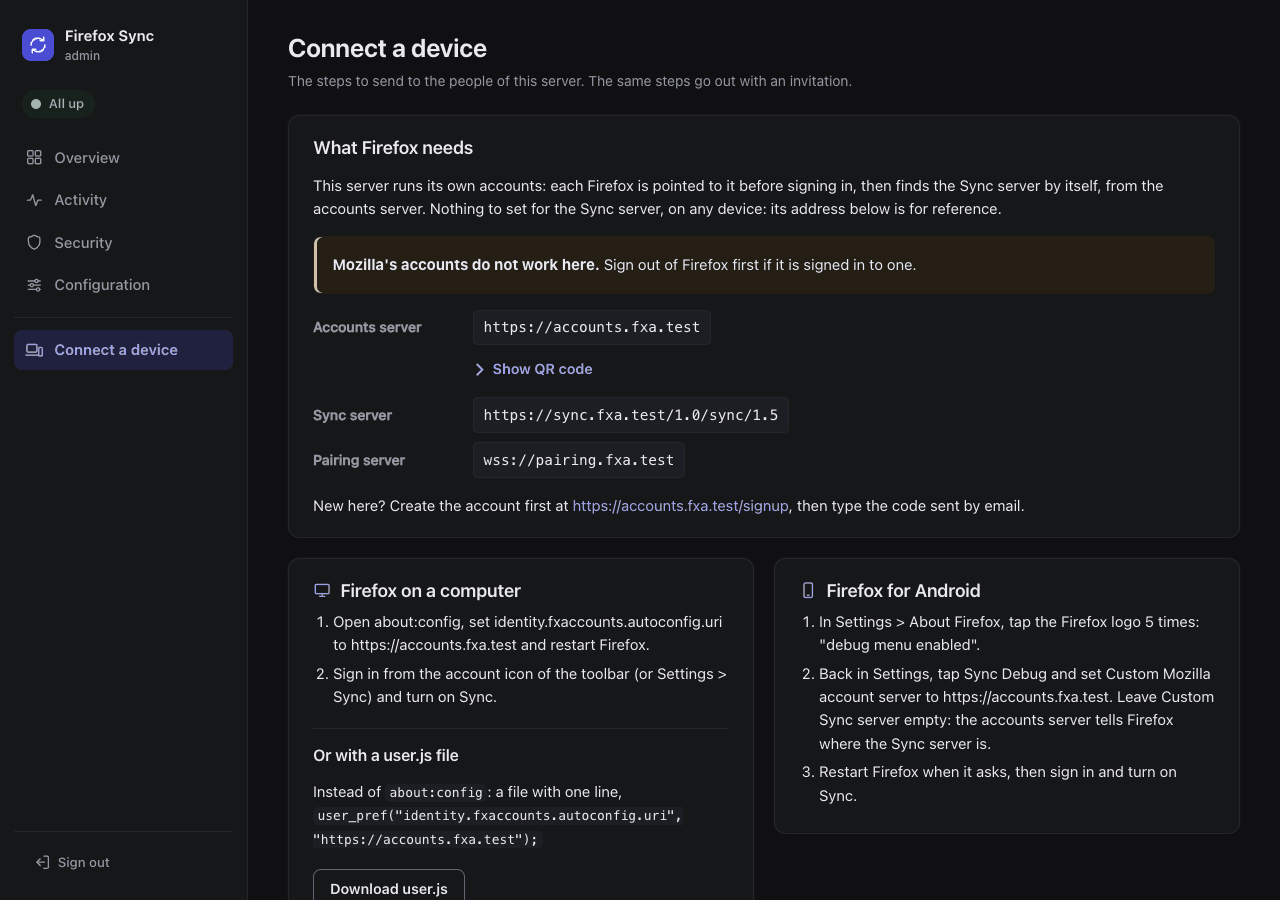
The admin UI's Connect a device page, in its menu, shows the steps of this page with your server's values. With self-hosted accounts, its invitations send them by email.
- Download user.js, under Firefox on a computer: the user.js file of your server, its one line under a comment that says what it is and how to undo it.
- Show QR code, under the address a phone needs (the accounts server; with Mozilla's accounts, the Sync server): the address as a QR code. Scan it with the phone's camera to copy the address, then paste it in Firefox's debug settings instead of typing it. The address is written under the code too. The code is drawn by the admin UI itself, without a script or an outside service.